Showing posts with label How to use Photoshop. Show all posts

How to Fix It: When You Saw It - But Your Camera Didn't Cooperate


Last year I went looking for a winter landscape to paint. This is what I saw near my house:


The scene had some potential: interesting design elements and the required colors for a good painting: red, yellow, blue, black and white....so what could go wrong? Ha!

And of course, this is what my camera recorded - it could have won "The Blah Award" (and I have more than a few of these).


So I fixed it in Photoshop to make it into a more useful photo reference and this is how I did it:


Select: Image - Adjustmets - Levels.


In Levels, grab the right hand triangle and slide it to the left so it just touches the black line on the far right side of the curve.

Then grab the middle triangle and move it slightly to the left until it "looks okay."


In Adobe Photoshop CS4 I do this above:
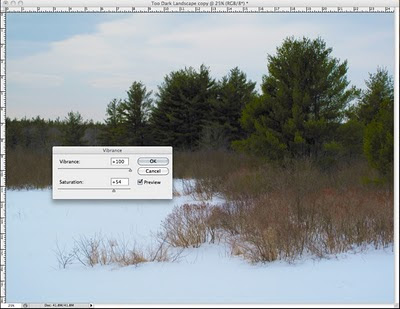
Image - Adjustments - Vibrance (increase)


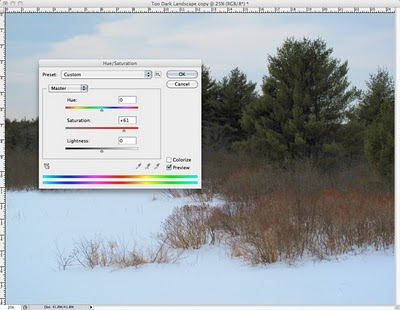
With earlier versions of Photoshop, you can do this:
Image - Adjustments - Hue/Saturation (increase saturation as shown above)


In the same way, Photoshop works for problem portraits too:


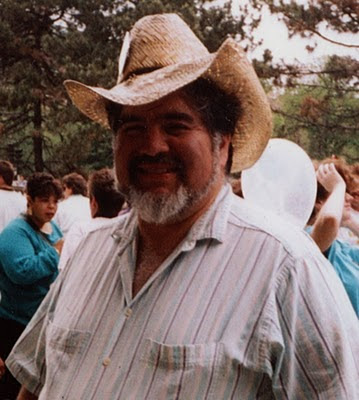
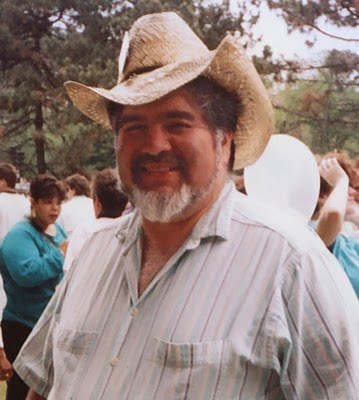
This is my old friend, Artist John Garcia. He died and all we have is a crummy snapshot that doesn't do hm justice (above).


With the help of Photoshop, however, his family and friends can better enjoy this picture of John's warm smile and friendly face.

Moral:

"Never give up on a bad photo. . . sooner or later, technology will catch up."

Cheaper Than Plastic Surgery


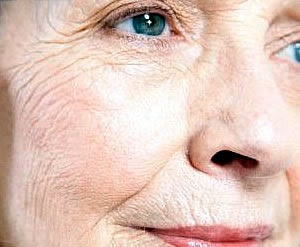
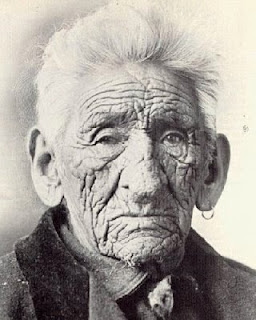
Photographs tend to clump values at both ends of the scale and wrinkles stand out and appear exaggerated.


When you're painting someone with wrinkles - know that they always look worse in a photograph than in person.


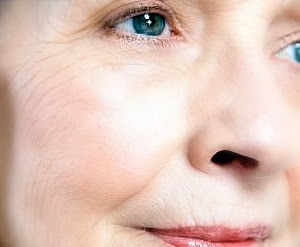
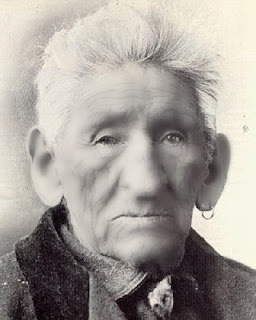
This is the same photo after I took out some of those dratted wrinkles via Photoshop. Per usual, I've exaggerated to make the point.

So here are two examples and you can see how to tone down those wrinkles step by step.

It will help to make your reference photos more flattering- and still be accurate.


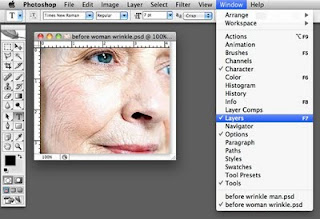
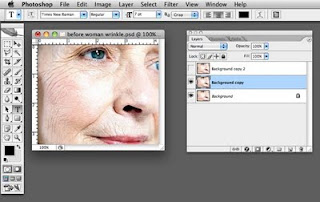
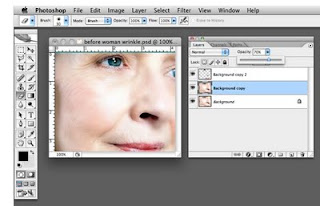
I work in "Layers" in Photoshop.


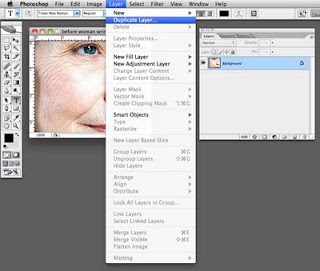
I create two duplicate layers of the original photo.


I turn off the "eye" on the top layer and highlight the second layer.


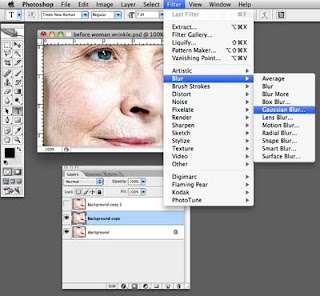
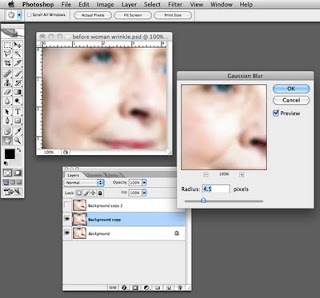
I select Gaussian Blur filter.


In order to demonstrate this I have exaggerated the filter.


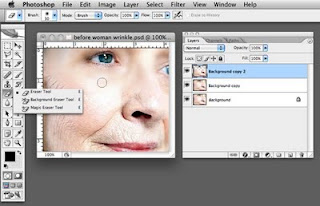
Next I make the top layer visible and highlight it.

I'll then select the eraser tool to wipe out all the wrinkles - being careful to leave specific and detailed features - eyes, nose, mouth, hair, etc.


Then move to the middle layer and adjust the opacity.

Again, I have exaggerated here to make a point - but you want to make it "believable."


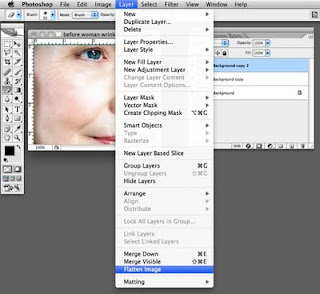
When you like the result, flatten the image.

Here's another example:


Before


And after!

How to Cope with a Really Bad Photo Reference


Bad reference photos happen and this is about how you can begin to make the best of it...

In a perfect world, I would only work with a great photo reference like the one below of Sara Lawrence Lightfoot. I took it in my studio with only a single source of light (like the light the Old Masters used).

Without any tweaking, this particular photo reference tells me pretty much what I need to know in order to paint Sara.

Obviously a good photo helps to make a good painting....the better the photo, the better the painting can be.


Then there are the problem reference photos we must work with because nothing else is available.

With the miracle of Photoshop, you may not need to resort to my "Studio Stress Reduction Kit."


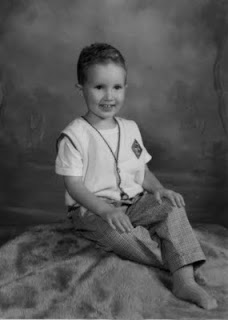
The little boy in the picture below is four and his mother wants to paint him at this particular age.

And alas, he has now grown up or my first suggestion would be for her to take another photo using a single source of light.

He's obviously a cute little guy but a reference like this is generally a nightmare. Here are some ways to allow yourself to "see" what you need to "see" in order to paint a decent portrait based on a poor photo reference.

(Note that I am not bothering to crop this into any other composition.)


This is the original full color photo.


This is the same photo desaturated (i.e., changed into Greyscale) in Photoshop. Color can confuse the eye and seeing value is most important here.


This is what I call the "Ansel Adams" approach to seeing a photo (above). This technique can sometimes salvage a poor photo or even make a mediocre photo look sensational:

Make a Layer in Photoshop. I used a Gaussian Blur Filter (12 pixels on this one) and adjusted the Brightness/Contrast to +15/+15.

Then fade this layer to about 35% and flatten the image. The result can sometimes give you a soft and glowing effect with softer transitions from light to shadow - much like an Ansel Adams photograph (tough to see here - sorry).


Here's another way to look:

I posterized a copy of the original grayscale photo to 5 levels above. I'm looking for pleasing patterns of light and shadow here - and a good solid abstract composition.


Posterized at 13 levels, you can see a more precise map of the distribution of value from highlight to deep shadow.


In this detail of the face, you can see where the centers of light are to be found and observe how light flows over the form.


A posterized detail of the arm shows how light plays on the form.


This is a close up detail of the unaltered face.

Sometimes we must paint what we know - and not merely what we see.

So I took some liberties to mess with reality below:


Photographs tend to clump values on both ends of the scale.

Therefore I reduced the contrast between the teeth and the inside of the mouth so it will end up looking more "normal" in the painting.

(Unless the subject is a small baby, I don't know any professional portrait artist who will paint an open mouth).


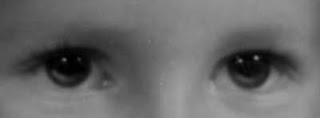
This is an eye detail of the face above showing how I added light to the iris and moved the highlights up. In a painting, this will make the eyes look more "real."

The source light comes from the upper right and the light (not highlight) reflected in the eyes is an opportunity to get the "color" right.

Note that under the clear lens of the eye, the iris is shaped like a shallow "concave dish" whose opposite rim catches light.

Also, I raised the existing highlights in the eye. This is a portrait painter's trick to make the child look "more intelligent" in the final painting.

Note that I always add highlights in the eyes after the surface is dry. It's easy to make someone look googly-eyed and it usually takes me a couple of tries before I get it right.

I like the option of wiping off the paint without wrecking the entire freshly-painted eye.


"Shrink the head" and read about why I do this. Because this is a child and his head is proportionally large, I don't shrink it very (much as shown above).


Painting plaid and other complicated patterns isn't as hard as you think. I added the Photoshop Gaussian Blur filter to make the light underneath the pattern easier to see.

First you will need to paint the cloth beneath the pattern and get the light and shadow right. Then paint the pattern.

I do hope this helps....


Critique: Think "Values" To Get Back On Track Quickly


It is said that "if someone can learn to really see, they could easily learn to paint and draw like the Old Masters."

I tend to agree with this.

A reader sent me a WIP (work in progress that she is struggling with). 

She's not that far off and she can easily correct her painting when she can "really see" what is wrong.


Above is her painting so far and the original reference she is using. I'm NOT going to critique the original photo - that is another subject completely. (But a good reference photo has certain criteria makes painting a lot easier).

So, with a digital camera, a computer and Photoshop (there is other softwares that also work) you can begin to "see for yourself."

(There's a "low tech" solution at the end of this post if you need it.)*


Color can get in the way and be confusing so the first step is to get rid of it.

I removed all color via Photoshop. 

Value and patterns of value (sans color) are the places to begin when you're clearly in trouble.


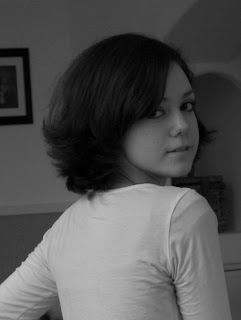
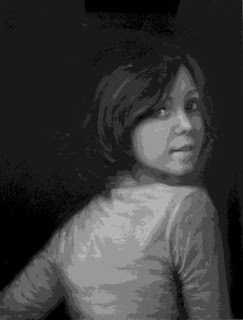
I converted her Original Reference to greyscale (above). 

Note how "soft" it is as the light gently flows down the figure. The lightest object is the shirt, then the face. The hair is the darkest. The background is lighter in value than the hair and defines the overall shape of the hair - a nice design element in this picture.


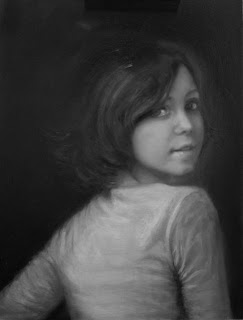
In this WIP, the face and shirt are of equal value. The value of the hair is broken with too much light and isn't defined as a distinct shape from the value of the background.


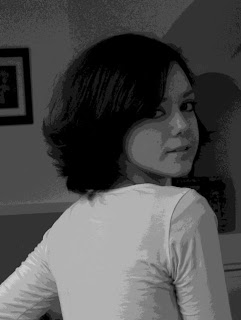
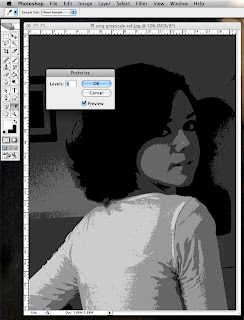
You can see the Photoshop process above as I posterized the original greyscale reference into 11 levels of value. 

I could have chosen any number of levels that clearly shows the center of light and how the light and shadow is distributed on each object.


Note that there is a specific pattern of light on the hair. 

The lightest value (highlight) on the face is on the side of the nose. 

The secondary light is confined to  the near side of the nose, cheek and chin. ALL other light on the face and neck are NOT as light as these.

Form is determined by how light turns into shadow. This is called the halftone (neither light nor shadow). You can see how the halftone describes the far cheek and chin.

If you can accurately paint the halftone, your painting will be essentially finished!


In the 11 level posterization of the WIP, you can see that the distribution of the light and dark values of the general objects (face, shirt, hair) are incorrect in relation to each other. 

Also, within each object respectively, the light and shadow patterns differ from the original reference material.

Of course, you can use a photo as a mere reference or "suggestion" but if you want to paint more or less realistically, you cannot reinvent the rules of light until you understand them.


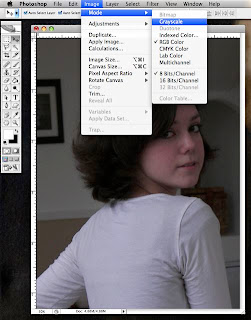
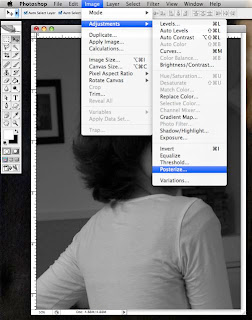
Playing in Photoshop is a good way to "see." The above pix shows a screen shot of my computer when I turned the original reference into a 6 level posterization. The lower levels will give you more of an "abstract view. " 

And a really good abstraction is the best foundation for any painting.

*But don't despair if you're not a techie, here's a LOW TECH solution for you: 

Before I got a computer and went nuts learning Photoshop, I used to take a transparent sheet of red acetate (Office Supply Stores sell them as "report covers") and put it over a colored photograph.

The red acetate will eliminate the color beneath and reveal the values. Any red lens or red glass will do this also.